Wired RGB Switch Gamepad: Setup, Features & Tips
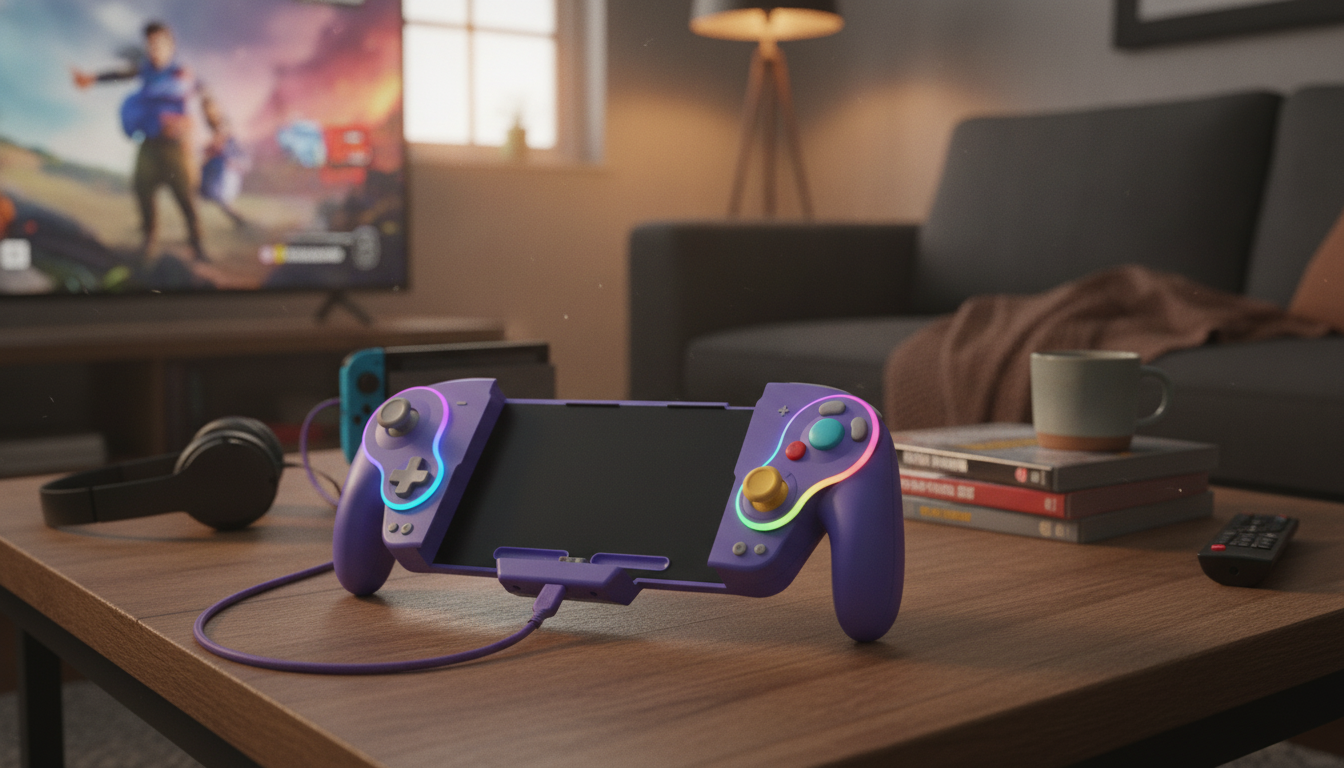
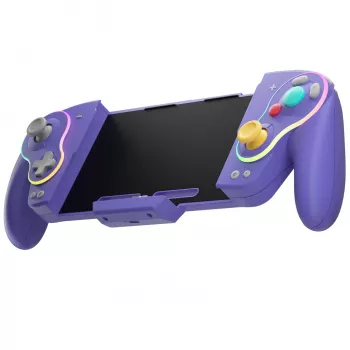
Wired RGB Gamepad for Nintendo Switch & OLED
A wired controller can be the simplest way to get consistent input, zero charging worries, and a comfortable grip for long sessions on Nintendo Switch and Switch OLED. Wired play is especially handy in a living-room setup where the console stays docked, guests rotate in and out, and nobody wants to pause a match because a controller battery is low. Below is a practical guide to what a wired RGB gamepad is built for, how setup usually goes on Switch and Switch OLED, and which features tend to matter most across different genres.
What This Controller Is Designed To Do
A wired RGB gamepad for Switch is focused on reliability and convenience without changing the fundamentals of how games feel. Instead of managing charge levels, it draws power through USB, keeping it ready for long sessions or surprise multiplayer nights.
- Provide a stable wired connection for docked play on Nintendo Switch and Switch OLED
- Add customizable RGB lighting for a more personal look without changing gameplay fundamentals
- Offer a familiar gamepad layout for action games, platformers, racing, and party titles
- Reduce downtime compared with wireless controllers by removing battery management
Compatibility and Setup on Switch & Switch OLED
Most wired controllers are intended for docked play, since the dock supplies USB ports and steady power. On Switch OLED, the experience is typically identical when docked: plug in, confirm recognition, and assign the controller to a player slot.
- Docked use is the most common scenario for wired controllers; ensure the console is in the dock and connect via USB
- Check controller settings on the console if a wired controller is not detected (some setups require enabling wired communication in system settings)
- Confirm the game supports a standard controller profile; most first- and third-party games do
- If multiple controllers are connected, verify player order and controller assignment from the Switch controller menu
Quick Setup Checklist
| Step | What to do | What to check |
|---|---|---|
| 1 | Place Switch/Switch OLED in the dock | TV output active and dock powered |
| 2 | Plug the gamepad into a dock USB port | Controller indicator shows connection |
| 3 | Open Controllers in the Switch menu | Controller appears and is assigned to a player |
| 4 | Test in a game or controller test screen | Buttons/sticks register correctly |
If troubleshooting is needed, Nintendo’s official support pages are the safest reference for controller behavior and player assignment: Nintendo Support: Controllers and Accessories (Nintendo Switch) and Nintendo Support: Pairing and Changing Controller Order.
RGB Lighting: Looks, Controls, and Practical Considerations
RGB lighting is mostly about vibe and visibility, but how it’s implemented can affect comfort. Brightness is often more important than color: a subtle glow can look great on a TV stand, while an intense “breathing” effect can be distracting in a dark room.
- Lighting modes typically include static colors and cycling effects; pick a mode that stays comfortable during dark-room play
- Brightness can matter more than color—lower settings help reduce glare on reflective screens or glasses
- Wired power means RGB effects usually stay consistent without draining a battery mid-session
- If the controller offers lighting toggles, turning RGB off can be useful for late-night sessions or minimal distractions
Because the controller is powered through USB, it’s helpful to understand the basics of USB power and connectivity expectations. For general background, see USB Implementers Forum (USB-IF): USB Basics.
Controls and Comfort Features That Affect Gameplay
Two controllers can look similar but feel very different once a match gets intense. The biggest difference-makers usually come down to stick behavior, button response, and how the shell fits your hands.
- Stick feel and dead zones: Precision games (aim-heavy shooters, quick platformers, time trials) benefit from smooth travel and consistent centering.
- Triggers and bumpers: For racing and action games, predictable actuation helps with braking points, drifting, and combo timing.
- D-pad and face buttons: Fighting games and retro collections can feel better with a D-pad shape that matches your input style (taps vs. rolls).
- Grip and weight: Long sessions are easier when the controller sits naturally in the palm; textured grips can reduce slips when hands get warm.
- Extra functions (when available): Turbo or programmable functions can be useful for grinding or accessibility, but it helps when they’re easy to disable to avoid accidental activation.
Wired vs Wireless for Switch: When a Cable Wins
Wired vs Wireless at a Glance
| Factor | Wired controller | Wireless controller | |
|---|---|---|---|
| Power | No charging; powered by USB | Needs charging or batteries | |
| Connection stability | Typically consistent | Can vary with interference/distance | |
| Best use case | Docked TV play | Handheld/tabletop flexibility | |
| Setup | Plug in and assign | Pairing and reconnection steps |
Care, Durability, and Long-Term Use
Product Options (In Stock)
Wired RGB Gamepad for Nintendo Switch & OLED
| Item | Price | Availability |
|---|---|---|
| Wired RGB Gamepad for Nintendo Switch & OLED | $38.51 | In stock |
More In-Stock Picks
FAQ
Does a wired controller work on Nintendo Switch OLED?
Yes—Switch OLED supports wired controllers primarily through the dock’s USB ports. If it doesn’t show up right away, check controller settings and assign the controller to a player from the Controllers menu.
Can RGB lighting be turned off while playing?
Many RGB controllers include a lighting toggle or mode button. If that feature is available, cycling lighting modes typically includes an off or low-brightness option for a less distracting session.
Why isn’t my wired controller being detected in the dock?
Try a different USB port on the dock, reseat the cable firmly, and confirm the dock is powered and outputting to the TV. If the controller still isn’t recognized, check the console’s controller settings for any wired communication options.













Leave a comment